Thursday, July 6, 2023

Photo Editing Apps

There are many apps for editing photos. Most apps can be downloaded and used free. However free apps have limited but useful functions. Additional functions will need monetary subscription.

List of useful photo editing apps
  • SnapEdit
  • Facetune
  • FaceApp
  • Aibi
  • AI Photo Enhancer
  • Remini
These apps can be downloaded via Google Play Store to your smartphone.

All photo editing apps have pros and cons.

Getting familiar with features of each app is worth the trouble, time and energy.

You can download as many apps as you wish.

It is best to stick to a few apps which can do your work for you.

Some functions are not so good. Some functions are superb. Some apps are average.

The outcome of edited photos may differ slightly or greatly from the original.

Some photo owners will complain that their father looked different after photo editing. They don't sound happy. This is what AI does to photos. 

Some photos will not change much after editing. This is fine and good. 

Some apps can help remove objects from photos.

Some apps can blur disjointed portions of photos.

Some apps can enhance and colour photos.

Some apps can change eye colour, eyebrow and facial tone.

Some photos are better edited using Paint or Photoshop.

Photoshop is a lot of work for a beginner.

Stick to apps available for the smartphone as they work fast and the turnaround time is just a few seconds.

Storage limit in Google Drive

Storage on Google Drive is limited to 15 GB (free).

When storage limit is almost near 15 GB, there are warning emails sent to alert the user. This is annoying.

Buying online storage is expensive. Other online storage also have limits and subscriptions.

Check to see which sector is using a lot of storage - Email, big files or Photos.

Remove photos to your hard disk (HD). Don't take too many high resolution photos.

Removes big files to your HD. This can be image + text files, project files, flowcharts etc.

Delete Emails which you no longer need. 

Print important Emails as PDF files and save them to your HD.

Empty your Email bin.

Your Gmail will Delete emails in the Bin after 30 days. Just check to see if your Email bin is emptied properly.

There is no need to purchase extra storage if you keep cleaning your Google Drive regularly.


How to remove Gmail address from unwanted websites

Go to your Google account

Click on Security at left panel

Scroll down to 'Sign in to other account' and click to see websites that have your Gmail address

Click each website and remove your Gmail and click Confirm

Do for all the unwanted websites

Close your Google account


Saturday, May 21, 2022

Different headers for different sections in Word Document

I sent a new Section in the text

Insert Header

Choose Header

Choose Same as Previous or

Choose Different and Edit header


Thursday, November 4, 2021

Windows 7 Sound Not Working

I have an old mini laptop which my daughter would like to use for her work. 

  • Brand: Toshiba
  • Model: Toshiba NB520
  • OS: Windows 7 Ultimate, 32-bit
  • Processor: Intel, 1865 MHz
  • Total memory: 2048 MB

She had the HD replaced as the shop said it was corrupted. The HD was replaced for RM230. However, when she brought it home, the laptop had no sound. The laptop was physically in good condition.

Microsoft had stopped its support for Windows 7 since 2010. It offered other websites for help. I took a look at the laptop and tried a few things available on the Internet to get back the sound for this laptop. But none worked.

Here are some things I tried:

  1. DriveEasy - Windows 7
  2. DriverFix
  3. Downloaded sound driver zip file from Aorus
  4. Appuals - How to fix "Failed to play test tone"


Drive Easy offered many help which I followed but nothing worked: https://www.drivereasy.com/knowledge/fix-no-sound-windows-7/


I then tried DriverFix which had a scanning program and could tell me what drivers I needed to update. The DriverFix Scan Results showed most Drivers were updated except for a few:

  • 13 available Drivers to update
  • 72 Up-to-Date Drivers 

I tried Manual installation of the sound driver (by choice) but I didn't see the Auto setup.exe file in the unpacked file. So I had to search for something else that had the wizard for setup.


I then downloaded the sound driver from Aorus to try: https://www.aorus.com/motherboards/GA-H61M-S-rev-2x/Support

  • ZIP archive: mb_driver_audio_realtek_6.0.9088.1.zip 
  • (unpacked size: 815,635,326 bytes)
  • Realtek HD Audio Driver (Windows 7 32bit)
  • Version 6.0.9088.1
  • Size 308.01 MB
  • Date: 12 March 2021 

I tried and followed the installation instructions. Still the sound didn't work. When I tried the Speakers, the sound tests produced an error message: "Failed to play test tone".


I then followed the instructions at Appuals, which had clear step-by-step guide: https://appuals.com/how-to-fix-failed-to-play-test-tone-error-on-windows-7-8-and-10/

Still nothing worked.


DriverFix program that scans for updated and outdated drivers

Aorus website

The Sound Driver ZIP file is 308.01 MB 

Extract Here folder
(there is only one folder named Audio_9088)

My daughter then took back the laptop to the shop for more repairs.

Wednesday, October 13, 2021

Data Storage

Data storage:

  1. Pendrive
  2. Hard disk drive (HDD)
  3. Large capacity portable HDD (1TB = 1 Terabyte)
  4. Solid state drive (SSD)

Users have stored their data on pendrive and hard disk drive (HDD).

Now there are disk drives with large storage capacities (terabytes).

There is also now, solid state disks (SSD), which are faster and more robust compared to HDD. But data retrieval can be longer on SSD than HDD or pendrive.

The HDD has movable mechanical parts. Accidentally dropping the HDD or passing it near strong magnets may destroy data stored on HDD.

The SSD has no movable mechanical parts. Dropping the SSD should not destroy data stored on SSD. However, data can still be destroyed if the SSD is passed near strong magnets.


An assortment of pendrive 2000-2018

Large capacity HDD 2012-2021
(rear StarJet 500GB and foreground Transcend 1TB)

Wednesday, July 21, 2021

FaceTune2 Selfie Editor

FaceTune2 is a face editor. It is useful to edit selfies. You can edit faces and background. You can also edit portraits in FaceApp and then use FaceTune2.


FaceApp Face Editor

FaceApp is a face editor. It is useful to create a series of images of a person at different ages based on just a single portrait. With just one portrait, it can create Child, Teenage, Young (many choices), and Old portraits (2 choices). It can also create a video clip of the various ages created, from Child to Old age. This is useful to view the transition of a person, from Child to Old age.


AirBrush

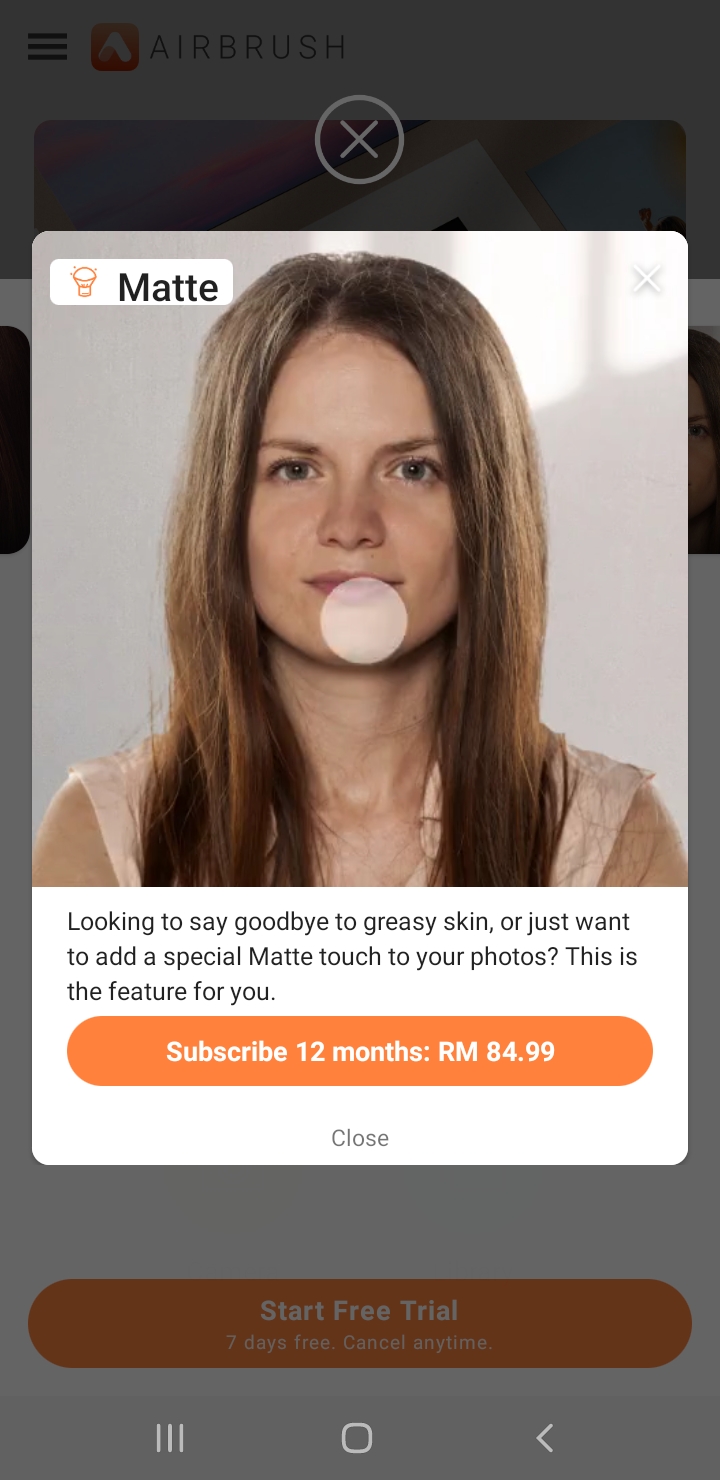
AirBrush is a useful app for touching up portraits. There are a host of tools to choose to work with. Lighting effects are great to try. The outcome is good. However, app requires a paid subscription.


There are endless things to try on various portraits, such as adjusting skin tone and relighting the face.

AI Photo Enhancer

There are a few photo enhancer apps which work on the smartphone. One good one is AI Photo Enhancer. It can enhance blur photos but not to a great degree - only a bit of enhancement is possible.

Here are some screenshots from my Samsung J5 Android.

The Enhance function is mostly used. 

The Colorize function is also quite good and gives soft colours to portraits.

Friday, June 4, 2021

Yaytext

Yaytext is a more flexible Bold Text Generator.

Go to Yaytext at https://yaytext.com/bold-italic/.

Type your text in the big space (box) next to Your Text.

Choose which Font you prefer - Bold, Italic, sans, serif, and their combinations

Click either Preview, Copy or Tweet. 

Click Copy to copy your newly created bold text to paste onto your post on socmed (social media).


Bold Text Generator

Bold text can be created on Facebook posts (and other socmed posts) using a Bold Text Generator

Go to https://capitalizemytitle.com/bold-text-generator/.

Type your text in the Input box on the left, click Bold on the menu below it, and the Output box on the right gives the results. 

Click Copy to copy the newly created bold text to your Facebook post (or other socmed posts).

A disadvantage is that there is no tab to choose Font, Font size and Font colour on the Bold Text Generator. However, these features may materialise in future versions.

Geni

How to build your family tree online at Geni (www.geni.com).


You can start with your family. 

Go online to www.geni.com.

Create one profile for yourself first.

Check to see if your profile or your family tree is already online.

If there is none, continue to build your family tree.


Add one profile and complete the details.

Then add another profile and complete details for that profile.

Keep adding profiles till you think you have everyone you know on your family tree.

Even if you don't know their names, you can use call names or whatever you remember them by.


You have now become a profile manager of your family tree.

Other profile managers may want to help you co-manage your family tree. They will each need to request you to let them co-manage your family tree. You decide.

Sometimes it is best to have a few close family members or relatives to manage your family tree, especially if your have 10 generations or more.


You can merge your family tree with another family tree if you know the correct link(s). Do this merging very carefully. Ask if you are not certain. Do not delete any shared profile as you will also delete someone else's family tree too. Merging can be risky or beneficial.


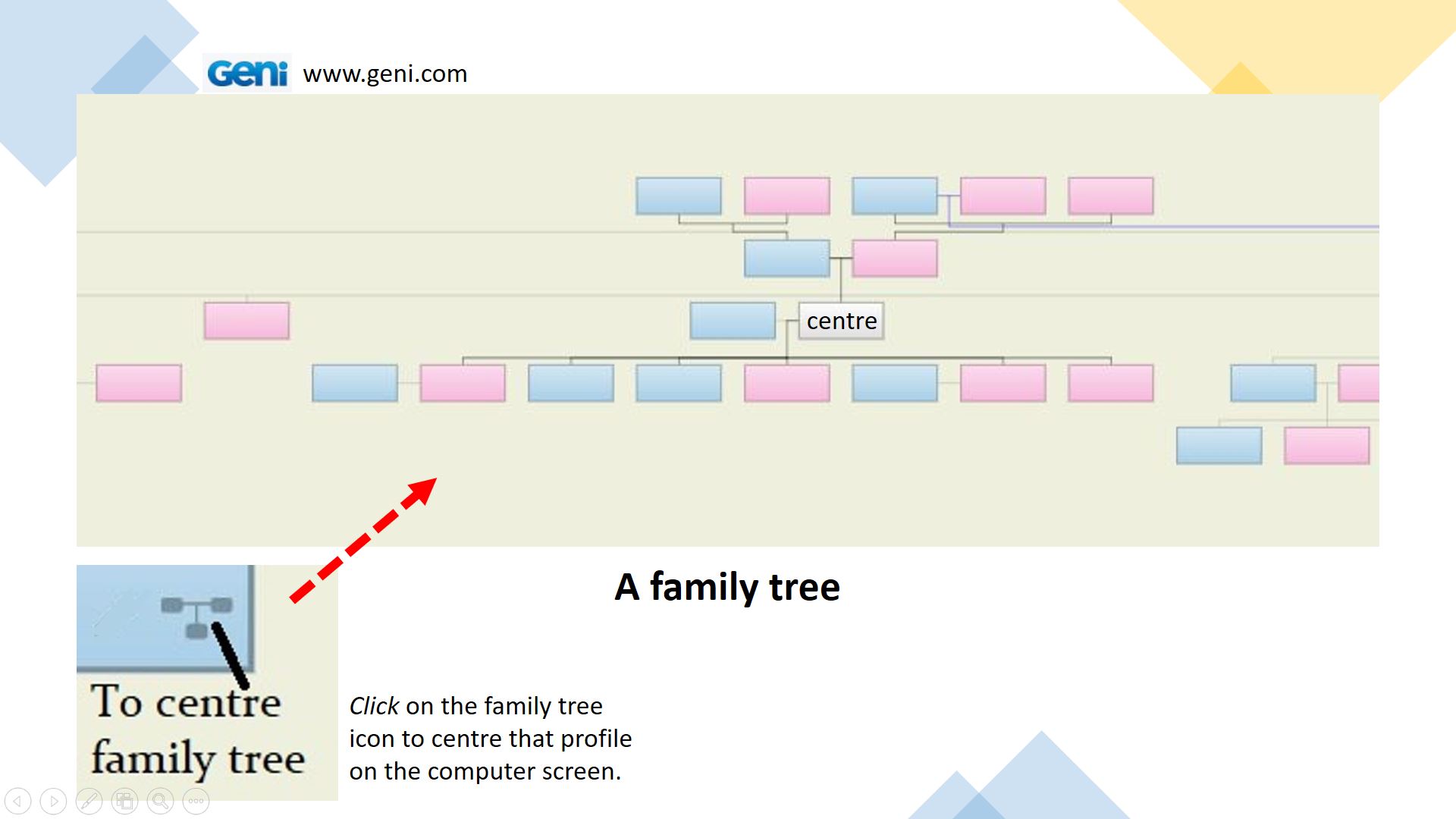
Here are some slides I made to help you create your own family tree online at Geni. Do not be afraid to try. There is always help online at Geni.


How to print your family tree

There are many ways to view and then print your family tree. Refer to the slides below.